
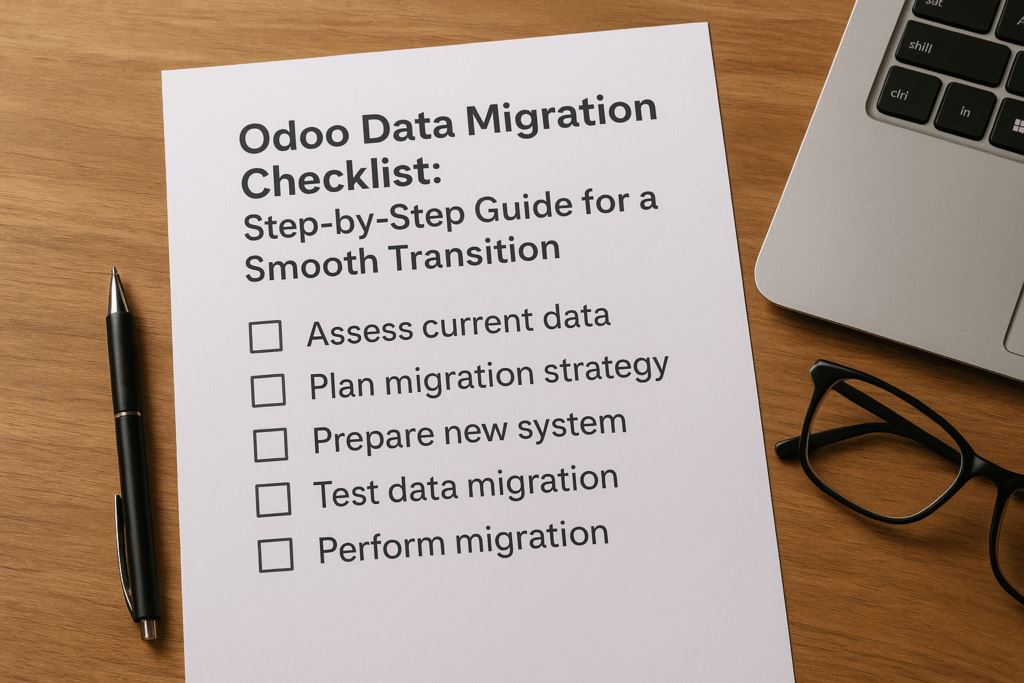
Odoo Data Migration Checklist: Step-by-Step Guide for a Smooth Transition
Switching to a new ERP is one of the biggest decisions for any growing business. Whether you’re modernizing outdated software in the USA or expanding operations in the UAE, a well-planned Odoo data migration checklist ensures your transition is smooth, accurate, and future-proof. In this guide, we’ll break down the essential steps, highlight best practices for 2026, and show how the right approach reduces risks while maximizing ERP value.
Short answer
A good Odoo data migration has four parts: list every dataset (customers, vendors, products, opening balances, open invoices and history), map old fields to Odoo fields, import in phases starting with master data, then check totals against the old system before go-live. Always test the import on a copy of the database first.
Why Data Migration Matters in Odoo Deployments
Migrating data is more than just moving spreadsheets into Odoo. It’s the foundation of your ERP ecosystem. Clean, structured, and validated data directly impacts reporting, compliance, and day-to-day workflows.
Odoo has strengthened its migration tools with faster import engines, enhanced validation rules, and better handling of complex datasets. For businesses in the USA, this means smoother compliance with accounting and tax regulations. In the UAE, the improvements support multi-currency handling, VAT reporting, and regional accounting standards. Without a clear migration plan, companies risk delays, system errors, and frustrated employees.
Step 1: Prepare Your Odoo Data Migration Checklist
The first step is documenting every dataset you’ll migrate. Think of this as your roadmap. Your Odoo data migration checklist should cover:
Customer and vendor records: Ensure names, addresses, tax IDs, and contact details are consistent.
Products and inventory: Standardize units of measure and verify stock levels.
Accounting balances: Capture trial balances, outstanding invoices, and reconciliations.
Historical transactions: Decide how many years of data to bring forward for analysis and compliance.
This preparation phase prevents surprises later and helps align business leaders, finance teams, and IT managers before the migration begins.
Step 2: Data Mapping in Odoo
Once you know what’s being moved, the next step is data mapping in Odoo. This means defining how legacy fields connect to Odoo’s structure. For example, a “Customer Code” in your old system may map to the “Internal Reference” field in Odoo.
Practical tips for this phase:
Use templates wisely: Odoo provides structured import templates for customers, vendors, products, and accounts.
Identify gaps: If a legacy field has no Odoo equivalent, decide whether to create a custom field or retire the data.
Test small batches: Import a subset of records to validate mappings before scaling up.
Effective mapping reduces errors, ensures consistency, and accelerates training for end-users who will rely on these fields daily.
Step 3: Execute and Validate with Odoo Migration Steps
Execution is where planning meets action. Follow these proven Odoo migration steps:
Backup first: Secure a snapshot of your legacy system before any transfer.
Import in phases: Start with master data (customers, products) before moving to transactions.
Validate imports: Cross-check balances, reconcile reports, and confirm that dashboards display correctly.
User acceptance testing: Involve real users to confirm the migrated data supports daily workflows.
An Odoo import guide approach—test, validate, correct, repeat—ensures accuracy before you fully switch to the new system.
Step 4: Post-Migration Support and Optimization
Once your data is live, monitor performance closely. Run daily reports during the first few weeks to confirm accuracy. Encourage staff feedback, as small errors in master data can snowball if not corrected quickly.
Linking your data migration to a broader Odoo implementation guide helps align new processes, integrations, and compliance updates. By combining strong migration practices with continuous support, businesses in both the USA and UAE achieve faster ROI and long-term ERP stability.
The 10-point Odoo data migration checklist
| # | Task | Done when |
|---|---|---|
| 1 | List every data source | Every system and spreadsheet is listed with an owner |
| 2 | Decide how much history to bring | A cut-off is agreed (for example open items plus the current year) |
| 3 | Clean the data | Duplicates removed, required fields filled, formats consistent |
| 4 | Map the fields | Each old field has an Odoo field, or is retired on purpose |
| 5 | Test on a copy | A sample batch imports with no errors |
| 6 | Import master data | Chart of accounts, taxes, customers, vendors and products are in |
| 7 | Import balances and open items | Trial balance, open invoices and bills and stock on hand are in |
| 8 | Reconcile | Receivables, payables, stock value and bank match the old system |
| 9 | User sign-off | Key users have checked real records |
| 10 | Freeze and final load | Old system is read-only and the final changes are imported |
Import order that avoids errors
- Chart of accounts and taxes
- Customers and vendors
- Product categories, units of measure and products
- Bills of materials (if you manufacture)
- Opening stock
- Opening balances
- Open invoices and bills
Records that others depend on go first — an invoice cannot import before its customer and products exist.
Conclusion
A successful ERP project begins with data you can trust. By following a structured Odoo data migration checklist, preparing data carefully, mapping fields accurately, and validating every step, your business can transition confidently into Odoo’s powerful ecosystem. For companies ready to upgrade operations in 2026, the right migration plan ensures you start strong, avoid disruptions, and unlock the full potential of your ERP journey.
Ready to simplify your Odoo migration? Contact OdooVizion today to start your smooth transition.
Frequently asked questions
What data should I migrate to Odoo?
At minimum: customers, vendors, products, the chart of accounts, opening balances, open invoices and bills, and stock on hand. Older transactions are optional — many companies keep them in a read-only archive instead.
Can I import data into Odoo from Excel?
Yes. Odoo imports CSV and Excel files into most records, with templates for common ones like contacts and products. Large or complex migrations are usually scripted instead.
How do I check the migration was correct?
Compare totals between the old system and Odoo: receivables, payables, stock value, bank balances and the trial balance. Then have key users spot-check real records before go-live.
Odoo Certified Partner Teams in the USA & UAE Reply within 1 business day
Planning an Odoo upgrade?
Tell us your current version and setup. We’ll reply within 1 business day with the safest migration path and a rough timeline.